Media2Html-HELP.html
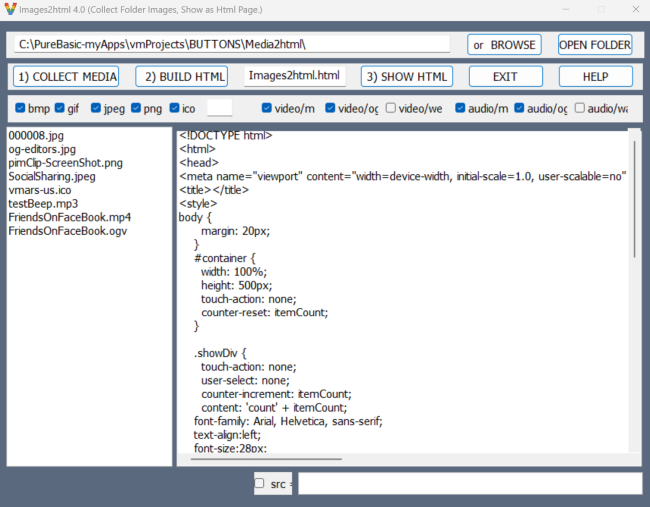
First step: The first Row of the program Display (left to right) shows the Default Folder where this program resides .
Your 1st step is to set the FOLDER name from which you want to Collect the Media from .
This is also the Folder where the program writes the output Media2Html.html File .
So , click on the or Browse button to locate this FOLDER .
Alternatively , you could create a ShortCut for the Media2html.exe program .
Then copy this ShortCut into the Folder where the Media resides .
Then click on that ShortCut to run Media2html.exe .
Checkboxes Row Second step : See 3rd Row down : Set the Checkboxes according to which kind of media you want to Collect . A Checked Checkbox means Collect this media type . A blank Checkbox means 'do not Collect' this Media type .
COLLECT MEDIA
Next step : See 2nd Row down: Click on 'Collect Media' button to start Collecting Media-files .
The Program will then populate the ListViewBox (4th Row) with Media file names .
At this point you can Edit this List if need be .
Build .Html Next step : When you click this button , program Builds the Output Html Code and Displays code in the EditorBox (4th Row) . You can Edit this info if need be .
Output Filename Textbox
Next step : See 2nd Row down: This Textbox shows the Default Output Filename , which is 'Media2Html.Html' .
Enter a new Filename if different from Media2html.html .
Show Html Click this button to show the created Html file in your default browser s.
EXIT EXIT the Media2html.exe program .
Help This is the Media2Html-HELP.html file , that you are currently reading.
Download Click this Link to Download Media2html.zip file . https://sourceforge.net/u/vmars-us/profile/